
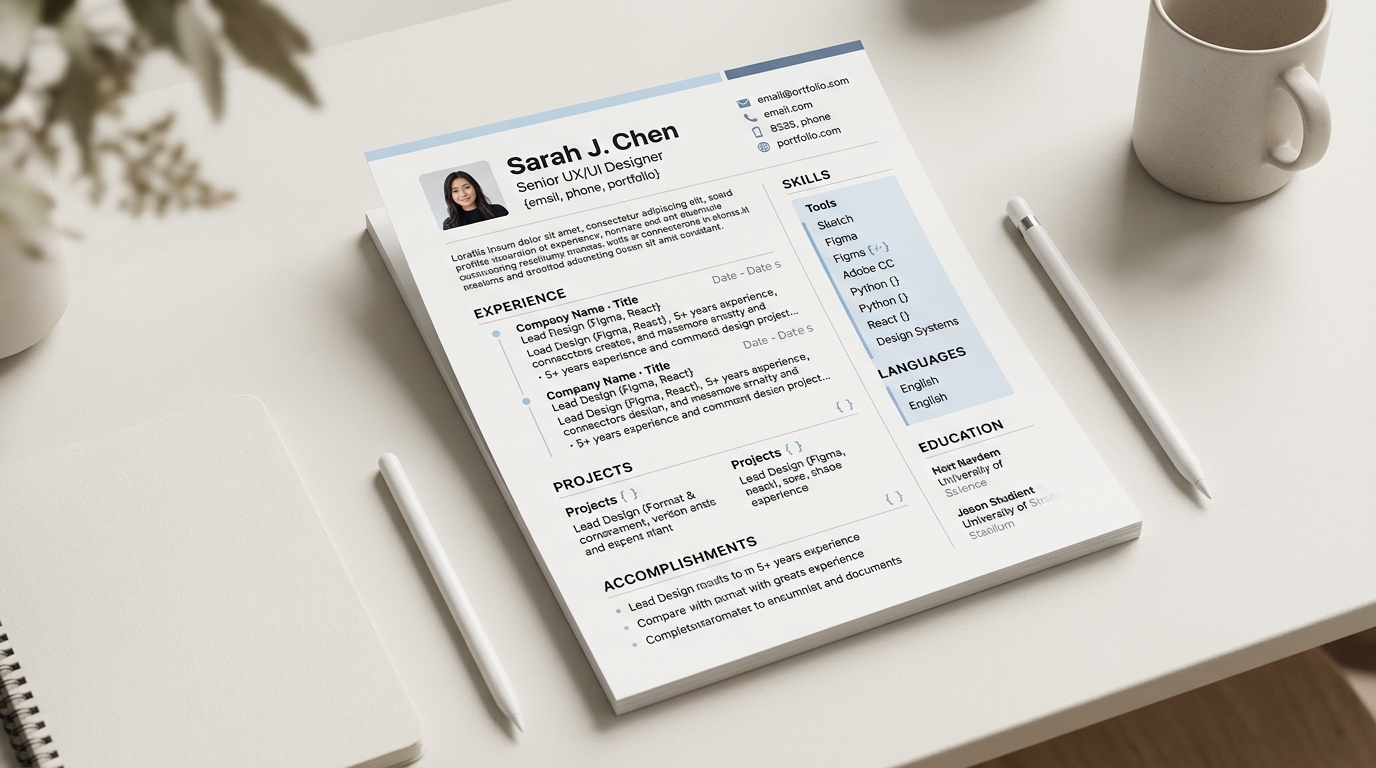
Switching a CV from one template to another carries every field of content across automatically, since the template only changes how the same underlying data is laid out, not the data itself. What can change after a switch is not the content but its position and prominence: a section a template places in a side column can move into the main reading flow in a different template, or the reverse, and a photo that one template shows prominently might not appear at all in another. None of that is content loss, but it is worth a quick check after switching, since a section landing somewhere unexpected is easy to miss on a quick glance.
Why content and design stay separate
A CV built in the builder stores its content, header, experience, education, skills and every other section, as data independent of any specific template, and a template is really just a set of rules for how to lay that same data out on the page: which sections run full width, which sit in a side column, what font and colours are used, and how much spacing separates one section from the next. Because the content and the layout are separate, switching from one template to another applies a different set of layout rules to the exact same data rather than rebuilding the document from scratch, which is why nothing needs retyping after a switch and why comparing templates with real content, rather than guessing from an empty preview, is a reasonable way to choose between them.
What carries over automatically
Every section, every entry within it, and every field inside those entries, name, dates, description text, links, moves across a template switch without needing to be re-entered. The order sections appear in in the source data also carries over, so a switch does not silently reorder your experience entries or drop a section the previous template happened to display. This is also what makes trying several templates before settling on one a low-cost decision: nothing about the underlying CV is at risk by switching back and forth to compare a few options.
What still needs a check: sections placed in a side column
Some templates place certain sections, commonly a skills list, a ratings list, or a short credentials block, into a side column that runs alongside the main experience and education column, while other templates keep every section running full width in a single stacked column with nothing beside it. A section that was tucked into a compact side column in one template can end up sitting full width, lower down the page, once you switch to a template that has no side column at all, or the reverse: a section that ran full width can end up compressed into a side column with less horizontal room than before. Neither placement is wrong, but the resulting emphasis and reading order genuinely differ, and it is worth a glance at where each section landed rather than assuming a switch preserves the visual weight a section had in the previous template.
What still needs a check: whether the photo shows at all
A profile photo is stored with the CV's header regardless of which template is active, but not every template displays a photo in its header design; some are built around a plainer, photo-free header even when a photo has been added to the document. Switching from a template that shows the photo to one that does not means the photo simply stops appearing on the page, even though it is still stored and will reappear the moment you switch to a template that does display it. This is worth checking specifically after a switch if a photo matters for the target market, since it is easy to assume the photo carried over the same way the text content did, when in this one case a template's own design decides whether it is shown at all.
Illustrative example: a section moving from a side column to the main column
Illustrative before and after. Before, in a two-column template: a Skills section sits in a narrow side column beside the main experience column, showing a dozen short tags stacked vertically, compact and easy to scan at a glance. After switching to a single-column template: the same Skills section, with the exact same twelve items, now runs full width lower on the page, after the experience and education sections rather than alongside them, taking up more horizontal space per item but appearing later in the reading order than it did before. The content itself did not change at all, only where it sits and how much visual weight it carries, which is exactly the kind of difference worth a quick look rather than assuming the two versions read identically.
A quick checklist after switching
After switching templates, it is worth a short pass down the page checking three things: whether any section that used to sit in a side column now reads differently in its new position, whether a photo you expect to see is actually showing in the new template's header, and whether the overall length changed enough to push content onto an extra page, since some layouts fit more per page than others for the same content. None of these checks take more than a minute or two, and catching a placement issue before sending the CV anywhere is far easier than catching it afterward.
Compare with confidence
Because switching a template never touches the underlying content, comparing a few candidates with your real CV inside each one, rather than guessing from a thumbnail, costs nothing but a few minutes. Browse the full set of templates and try a few directly in the builder, checking side-column sections and the header photo each time you switch.