
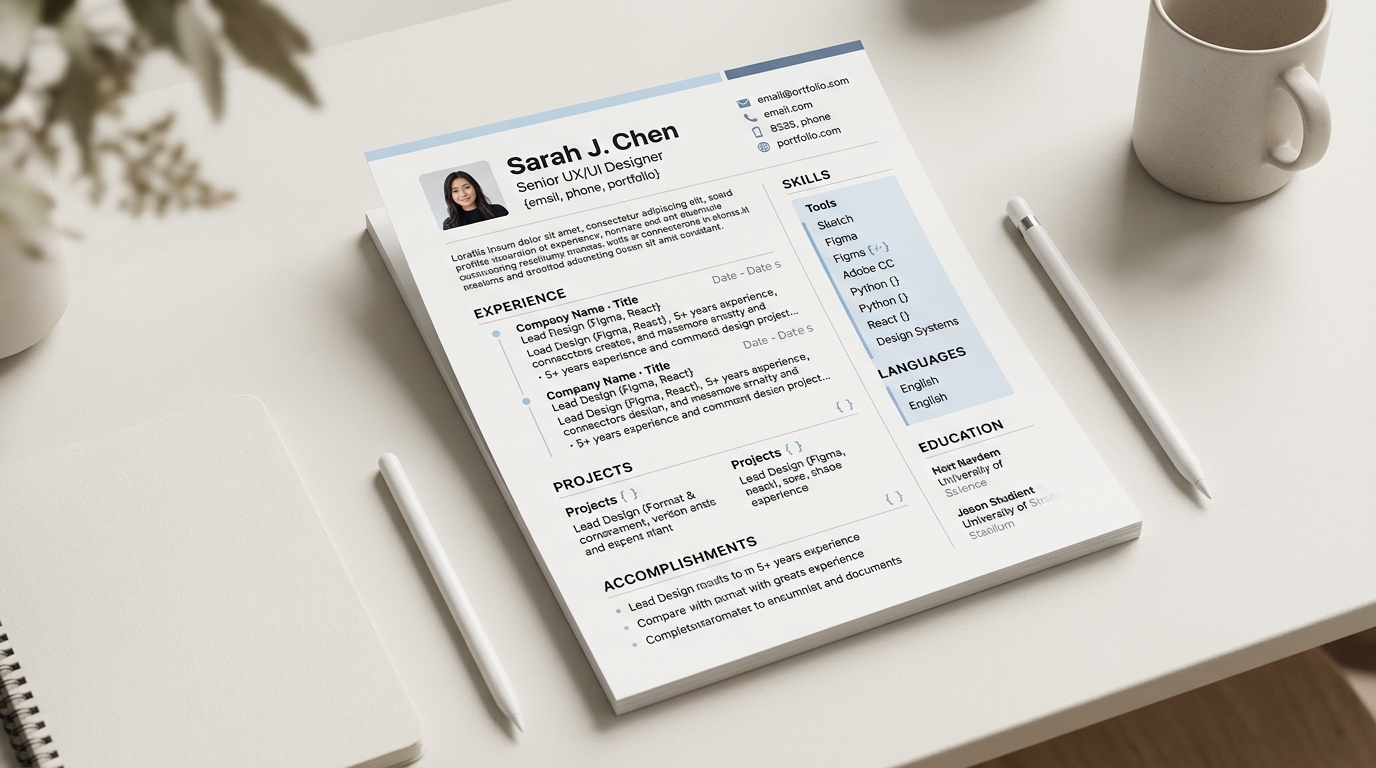
When the only copy of your CV is a scanned image or a phone photo rather than a text file, CVBuilderKit still reads it, but what happens next depends on which of the two you actually have. A scanned or photographed PDF gets its text layer read the same way any PDF does, up to its first four pages, and every one of those pages is also rendered as an image alongside whatever text was found, since a page with no real text layer underneath it would otherwise import as blank. A single photo of a page, saved directly as a PNG, JPEG or WEBP file rather than wrapped in a PDF, skips the text-reading step entirely and is sent as one image on its own. Either way, getting a usable result starts with the quality of the source image, not with anything the import step can fix afterward.
How a scanned PDF differs from a photographed image
A scanned PDF, produced by a scanning app or a document scanner, may or may not carry a real text layer underneath the page image, depending on whether the app that made it ran any text recognition of its own. CVBuilderKit's import does not need that text layer to exist: it always attempts to read text from up to the first four pages of any PDF, and it always renders those same pages as images too, so a scanned PDF with no usable text underneath it still comes through as a set of page images the extraction step can read visually. A bare photo file uploaded on its own works differently. Because it has no page structure to read text from in the first place, it is sent purely as one image, with no text-reading step attempted at all. The practical difference is page count: a PDF can carry several pages of a scanned document at once, while a standalone photo file only ever represents the one page it is a picture of.
Getting a legible source before you upload
A flat, evenly lit, cropped photo of a page consistently gives a cleaner result than a rushed one. Flattening a page rather than photographing it with a curl or a fold avoids introducing a warp across the text that a straight scan never has. Even, diffuse lighting rather than a direct flash keeps glare off glossy paper, since a bright reflection sitting directly over a line of text can genuinely make that line unreadable in the resulting image. Cropping the photo down to roughly the page's own edges, rather than including a wide margin of desk or background around it, keeps the actual text as large and detailed as possible within whatever resolution the browser ends up sending, since a photo is automatically resized before it is sent and a tightly cropped page keeps more of that resolution working on the text itself. One page per image is worth sticking to as well, rather than trying to fit two pages side by side into a single photo, since the text on each individual page ends up smaller and harder to read once two pages share the same frame.
One file at a time: combining several pages into a single PDF
Uploading only ever takes one file at a time, so a photo uploaded on its own contributes exactly the one page it shows, nothing more. If a CV runs to more than one photographed page, the practical route is combining those separate photos into a single multi-page PDF before uploading, using a phone's own document-scanning feature or a similar scanning app, rather than trying to upload the pages one at a time. A combined PDF is then read as up to its first four pages together, text and images both, in a single import, while a series of separate photo uploads would each only ever replace the one already on the page rather than adding up to a multi-page document.
What still needs checking after an image-based import
Because nothing about the underlying text was there to extract for a pure image or a text-free scanned page, every line the extraction step returns for that kind of source came from reading the image itself rather than copying reliable digital text, so a careful read-through afterward matters even more here than it does for a text-based PDF, a starting point covered in more detail in rebuilding a PDF CV into an editable document. Numbers and dates deserve a specific second look. A digit read as a different digit from a slightly blurred or poorly lit photo is exactly the kind of small error that is easy to introduce at this stage and easy to miss again on a quick skim afterward.
Illustrative example: a field that needs a manual check after an image import
Illustrative example. A photographed CV page shows a phone number set in a slightly blurred, low-contrast font in the header, next to a small icon rather than a text label. After an image-based import, everything else on that page, the job titles, the bullet points, the dates set further down the page in a clearer, higher-contrast font, reads through correctly, but the phone number comes through with one digit transposed, since a blurred photo gives even a careful read less to work with than the crisp printed text does everywhere else on the same page. That single field is exactly the kind of detail worth a specific check before sending the CV anywhere, rather than assuming a whole-document read went as cleanly as the parts that were easiest to photograph well.
Start the rebuild
A scanned or photographed CV does not need to stay a dead end just because the source is not text. Get a flat, well-lit, cropped photo of each page, combine more than one page into a single PDF first if you have them, and start the rebuild. For a source that is already a text-based PDF, rebuilding a PDF CV into an editable document covers the equivalent walkthrough for that starting point, and how to write a resume covers the structure worth checking once the content itself has come through.